Workspace Snapshots
Apply a ready-made setup, such as pipelines, custom fields, workflows and templates, to your workspace in one go.
A workspace snapshot is a saved setup you can apply to a workspace in one go. It can add CRM pipelines, custom fields, workspace roles, workflows, websites from templates and AI SDR knowledge. A snapshot can also list funnels and cold email campaigns, but those are skipped for now and counted under Skipped when you apply it.
Applying a snapshot only adds things: nothing is changed or deleted. Most items that already exist in the workspace are skipped. Websites are the exception: each time you apply a snapshot with a website in it, you get a new copy of that website.
How to Get Here
- Click your workspace name in the top-left corner.
- Click Settings in the menu that opens.
- Click Workspace Snapshots under Workspace in the left menu.
Who can see this?
Only Owners and Admins can open Workspace Snapshots and apply a snapshot. Other members can't open the page. The page needs a computer; it doesn't work on a phone.
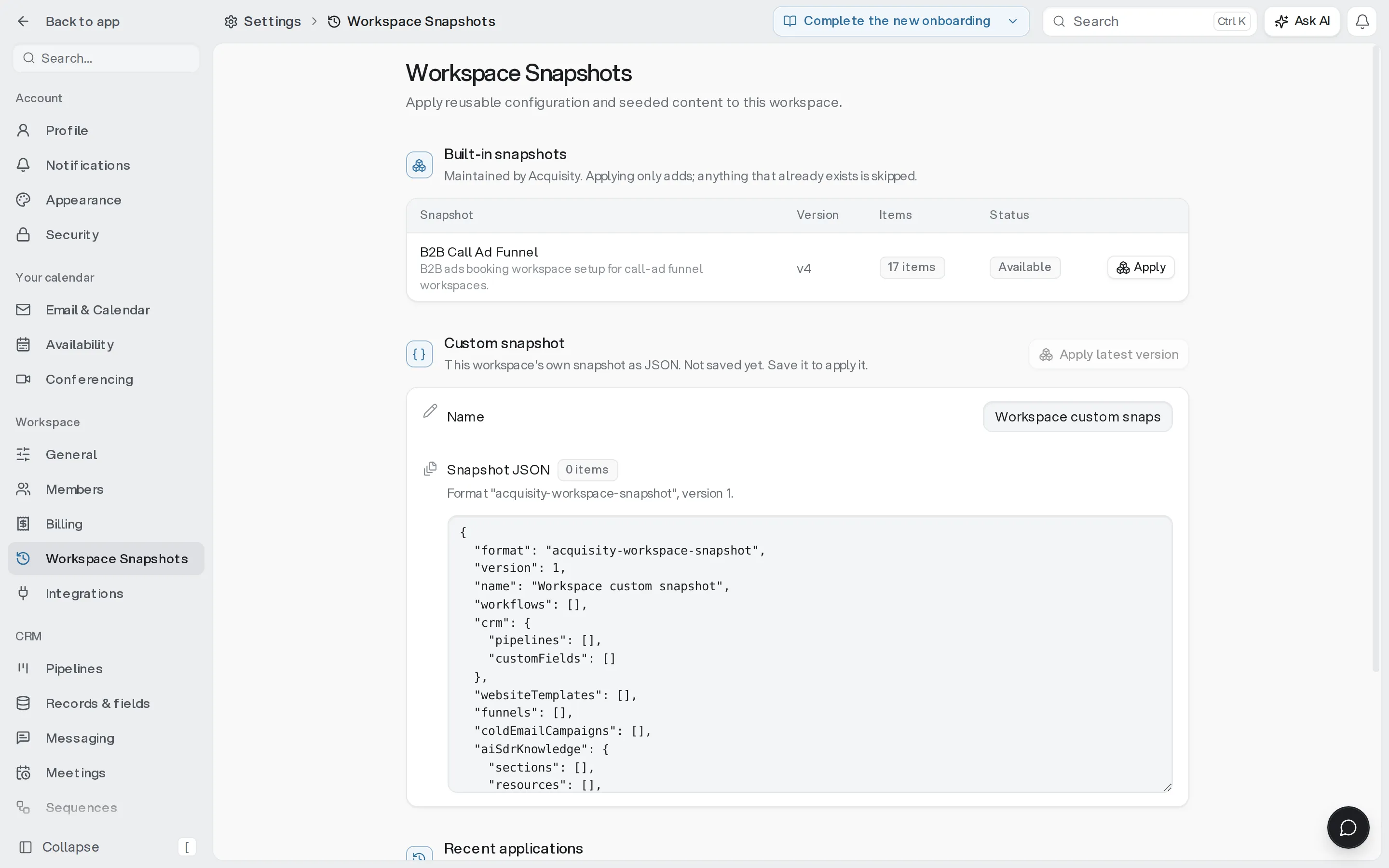
What's on the Page
| Section | What it shows |
|---|---|
| Built-in snapshots | Snapshots made by Acquisity, with their version, how many items each adds, and whether it's Available, Applying or Applied. A version that shows Applied can't be applied again. |
| Custom snapshot | This workspace's own snapshot, written as JSON. |
| Recent applications | Every time a snapshot was applied here, when, its status, and how many items it created, skipped and failed. |
Apply a Built-In Snapshot
- Find the snapshot in Built-in snapshots.
- Click Apply.
- Check Items to apply: each item, its type, and what will happen to it.
- Click Apply.
A progress window shows the totals (Total, Created, Skipped, Failed) and each item's status as it runs. Click Close when it finishes. The result also shows in Recent applications.
If an item fails, the rest still apply. The window shows a message for each failed item.
Use a Custom Snapshot
A custom snapshot lets you write your own setup as JSON, in the acquisity-workspace-snapshot format, version 1.
- In Custom snapshot, fill in Name.
- Paste or write the setup in Snapshot JSON. Errors show in red under the box.
- Click Save changes on the bar at the bottom of the screen. Each save makes a new version.
- Click Apply latest version, check the items, and click Apply.
Save your edits before you apply: Apply latest version is off while you have unsaved changes.