Records & fields
Add custom fields and groups to People, Companies, Deals and Appointments, set their statuses, and manage call and meeting outcomes.
Records & fields is where you shape your CRM records: the custom fields on each record type, the statuses people and companies can have, and the outcomes your team logs after calls and meetings.
How to Get Here
- Click your workspace name in the top-left corner.
- Click Settings in the menu that opens.
- Click Records & fields under CRM in the left menu.
Only Owners and Admins can open Records & fields. The page needs a computer; it doesn't work on a phone.
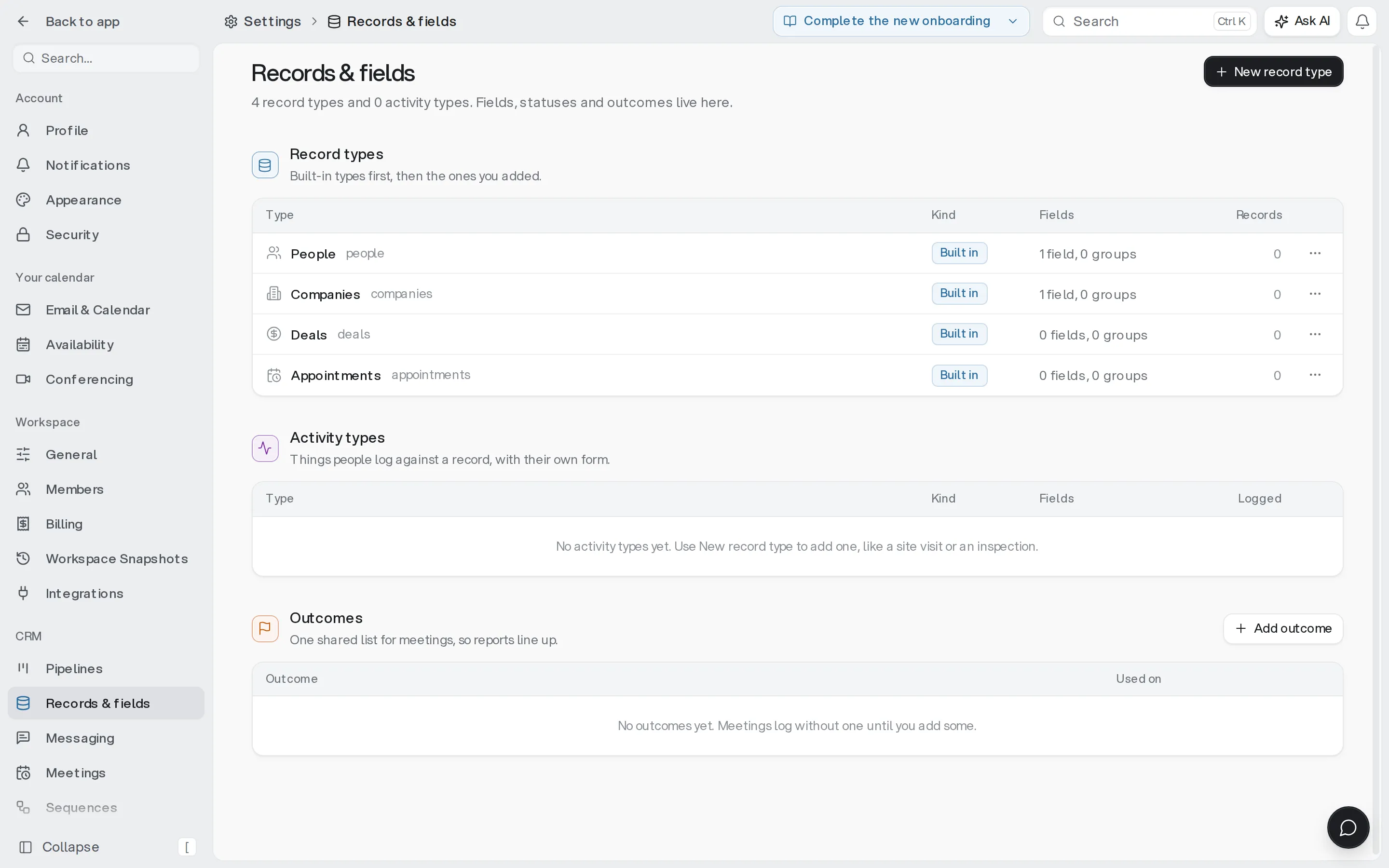
Record Types
Record types lists the four built-in types, each marked Built in, with how many records each has:
| Type | What it holds |
|---|---|
| People | The people in your CRM. |
| Companies | The companies they work at. |
| Deals | Deals in your pipelines. |
| Appointments | Meetings booked with people. |
Click a type to open it. Each type has two tabs, Fields and Statuses.
Some workspaces can also add their own record types and activity types (things people log against a record, such as a site visit). Those workspaces see a New record type button at the top and an Activity types list. Archiving a type you added keeps its records but hides it from records and forms, and you can restore it later.
Add a Custom Field
- Open Settings → Records & fields.
- Click People, Companies, Deals or Appointments.
- On the Fields tab, click Add field.
- Fill in Name.
- Choose a Type (see the table below). Some types ask for more, such as the options for a select or the currency for a currency field.
- Choose a Group if you want the field to sit in one.
- Add a Description and pick an Icon if you want.
- Click Add field.
To change a field, open it and click Save field when you're done.
Field Groups
Fields sit in groups, and groups appear on the record page in the order shown. Click Add group to make a new one, then pick it as the Group when you add or edit a field, or move fields into it.
Statuses
The Statuses tab holds the status options for People and Companies. Deals use pipeline stages instead, and Appointments have a fixed set (scheduled, took place, no show, cancelled). See Status Fields below for what each option can mean.
Outcomes
Outcomes at the bottom of Records & fields is one shared list of results your team logs after a meeting, or after a call too when your workspace has calling, so reports line up. Click Add outcome to add one.
Field Types
| Field Type | Use it for |
|---|---|
| Text | Single or multi-line text. |
| Rich text | Formatted text. |
| Number | Numeric values. |
| Currency | An amount of money in the currency you pick for the field. |
| Date | Date picker values. |
| Date & time | A precise date and time, displayed in the browser timezone. |
| Select | A single choice from options. |
| Multi-select | Multiple choices from options. |
| Boolean | A true/false toggle. |
| Member | One workspace teammate, shown by name and avatar. |
| URL | A web address, shown as a clickable link. |
| Status | Built in for People and Companies. A single coloured choice whose options can carry meanings. You cannot add it yourself. |
A type with no custom fields yet says No custom fields yet, with a reminder that a new field shows on every record of that type.
Member Fields
Choose Member to assign one active workspace teammate. Search by name or email, or choose Unassigned to clear the value. Member fields do not support default values or sorting.
Filters support is, is not, is empty, and is any of. Renaming a teammate keeps assignments and saved filters intact. Removing someone from the workspace preserves existing values with a former member label; they cannot receive new assignments.
CSV imports match an active workspace teammate by email. Blank cells leave the existing value unchanged. Exports use the teammate's email, including former members when their account still exists. If the account was deleted, the exported cell is blank and the download shows a warning.
URL Fields
Choose URL to store a web address. Only http:// and https:// addresses are accepted; anything else is rejected with an error when saving. A saved value displays as a clickable link labeled by its domain (for example acquisity.com) wherever the field appears.
Filters, sorting, CSV import and export, the public API, and dashboard widgets all work the same way they do for a Text field. Blank cells in an update import leave the existing value unchanged.
Workflows and public API writes use the teammate's user ID. Workflow inputs can also use a template that resolves to that ID. IDs from another workspace are rejected.
Currency Fields
Choose Currency and select USD, EUR, GBP, CAD, or AUD for the field. Amounts display with that currency and two decimal places. Zero and negative amounts are supported. More than two decimal places are rejected, never rounded; the maximum absolute amount is 9,999,999,999,999.99.
Changing the currency in field settings changes the label only. For example, $123.45 becomes €123.45 without converting the saved amount. Filtering and sorting compare plain numbers.
CSV imports and exports use plain decimals such as 123.45, without currency symbols or thousands separators. Blank update-import cells leave existing values unchanged. Public API values are numbers; the field definition exposes the currency in config.currency. Use null to clear a value.
Date & Time Fields
Choose Date & time when the hour and minute matter. Values are stored as precise instants and displayed in the timezone of the browser viewing the CRM. Relative filters such as is today also use that browser timezone; existing Date fields continue to use the profile timezone.
CSV imports and workflow or public API writes must include a timezone offset, such as 2026-09-21T09:00:00+05:30, or use Z for UTC. Local timestamps without an offset are rejected so exporting and importing cannot silently change the instant. CSV exports use ISO 8601 UTC timestamps.
Status Fields
People and Companies each have a built-in Status field. It is a system field, so it appears in the field list with a lock icon.
You can relabel it, change its icon and description, and drag it to a new position. You cannot delete it, archive it, or create another field named Status, and it does not appear in the Type list when you add a field.
Each status option has a name, a colour, and any number of meanings:
| Meaning | What it does |
|---|---|
| Do not contact | While a person has this status, emails, texts, and calls to them from Acquisity are blocked, and the buttons say why. This also covers email addresses and phone numbers added later. |
| Customer | Marks the person or company as a customer. |
| Disqualified | Marks a record that is not a fit. |
| Won | Marks a successful outcome. An option cannot be both Won and Lost. |
| Lost | Marks an unsuccessful outcome. |
| Churned | Marks a customer that has left. |
Clearing the status removes only the blocks the status added. A person who replied STOP to a text, or who was marked do not contact by hand, stays blocked.
The block applies to sending from Acquisity. It cannot stop a call started from a phone number link outside Acquisity, and the Resend email step in workflows does not check it.
When you change what an option means for more than 200 people, email blocks catch up a moment later. Text and call blocks apply at once.
Meanings on Companies statuses are informational. Setting a company status never changes how the people at that company are contacted.
Every status change appears on the record's timeline. You can filter People and Companies by Status, and by changed within to find records whose status changed in the last few days.
Status options are managed on the Statuses tab of People or Companies. CSV imports accept the option name (any capitalisation) or its ID, and exports use the option name.
The public API reads and writes a status as an option ID.