Messaging
Save email and text templates for your workspace, and choose who sees communications on a record.
Messaging holds the email and text templates your team uses in the CRM. Owners and Admins also control who sees emails and texts on a record, and which addresses and domains to leave out of CRM sync.
How to Get Here
- Click your workspace name in the top-left corner.
- Click Settings in the menu that opens.
- Click Messaging under CRM in the left menu.
Everyone in the workspace except Clients can open Messaging. Text templates show only in workspaces with phone calling. The page needs a computer; it doesn't work on a phone.
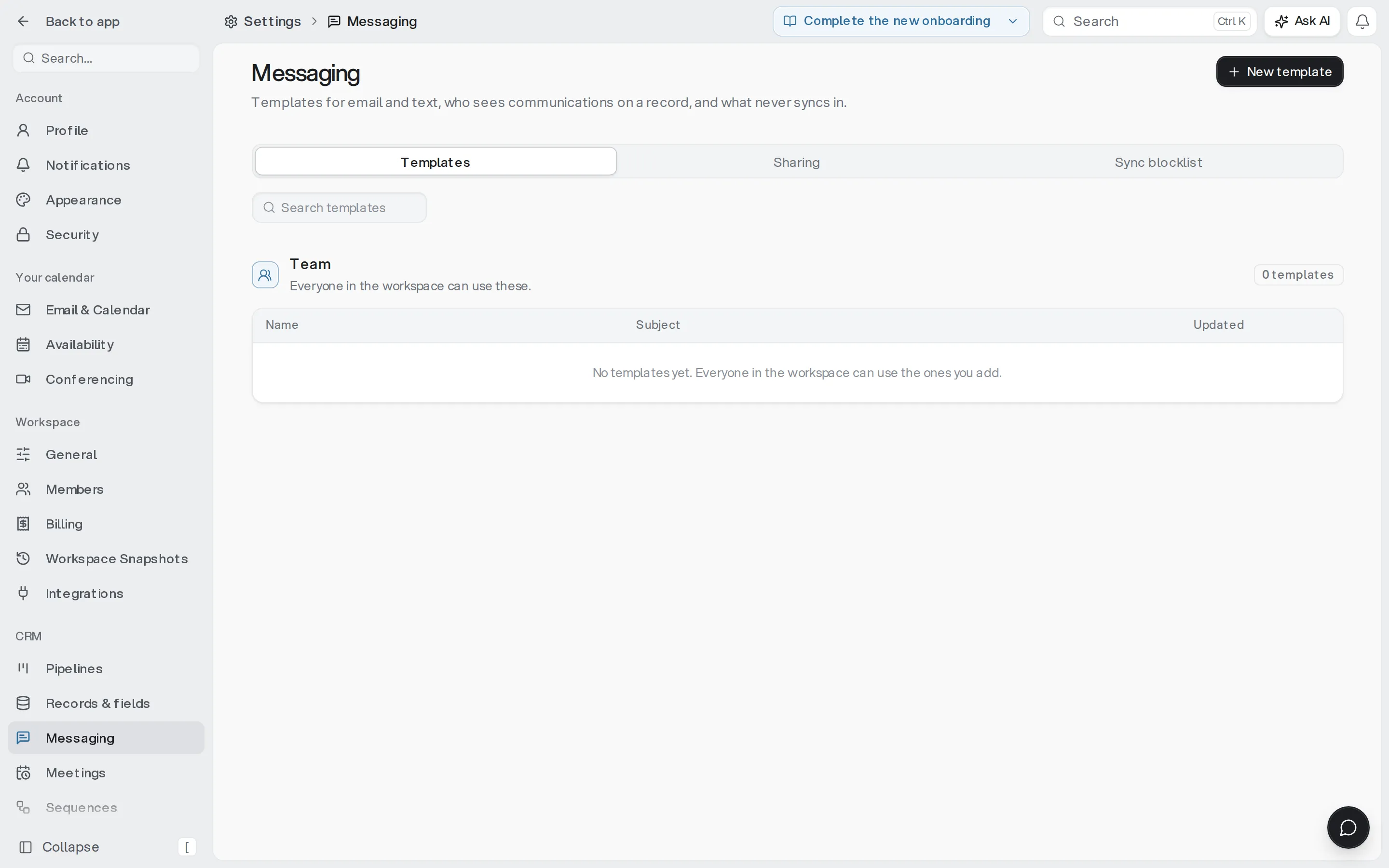
The Tabs
- Templates (everyone except Clients): email and text templates.
- Sharing (Owners and Admins): who can see communications on a record.
- Sync blocklist (Owners and Admins): addresses and domains to leave out of CRM sync.
Templates
Use the Email and Text switch at the top to pick which templates you see, and Search templates to find one by name.
When your workspace has personal templates, the list has two sections:
- Personal: only you see and use these, and Admins can see them too. New templates start here.
- Team: everyone in the workspace can use these.
Otherwise every template is a team template that everyone in the workspace can use.
Create a Template
- Pick Email or Text at the top.
- Click New template.
- Fill in Name.
- For an email, fill in Subject.
- Write the Body (email) or Message (text).
- Add variables if you want, such as
{{contact.first_name}}. They fill in from the record when you use the template. - Choose who can use it: Only you and admins or Everyone in the workspace.
- Click Save template.
Variables fill in when you send
Variables like {{contact.first_name}} fill in when you send. Braces with no known variable send as written, but a message that mixes them with a known variable can't be sent until you fix the spelling.
Edit, Share, Duplicate or Delete
Click the ⋯ menu on a template's row:
- Edit opens it to change.
- Duplicate makes your own personal copy.
- Share with team moves a personal template to Team.
Duplicate and Share with team show only when your workspace has personal templates.
- Delete removes it. Messages already sent keep their text.
The creator and Admins can edit a team template. You can also tick several templates and click Delete selected to delete them together. To share templates, use Share with team on each personal template's row.
Reuse Attachments
Click Attach files while creating or editing a template:
- Email templates: up to 20 files, 20 MB in total.
- Text templates: up to 10 files. Images up to 5 MB in total, other files up to 600 KB in total. Sending them needs a Twilio number.
Wait for the uploads to finish before you save.
Selecting the template in a CRM email composer loads its files alongside the message. Files already in your draft stay attached. Removing a file from that draft leaves the saved template unchanged.
Scheduled texts do not support files. Sequence steps copy template text only; they do not send template attachments.
Sharing and Sync Blocklist
Owners and Admins see two more tabs:
- Sharing turns Communication sharing on or off: whether teammates can read the emails and texts on records they can open.
- Sync blocklist lists your company domains and the addresses and domains to leave out of CRM sync. An email conversation or meeting stays out only when everyone else on it is a teammate, at a company domain or on the blocklist. If it also includes anyone else, it still syncs. Changes apply to new conversations and meetings; conversations already in the CRM keep syncing. It is separate from the cold email blocklist.