Lead Search Filters
What every lead search filter matches, when to use Include or Exclude, how AI search fills them in, 1 lead per company, why counts drop and tips by niche.
Lead search finds the people your campaign emails. You describe who you want, and the filters decide which leads match. This page goes through every filter in the order the new campaign flow shows it, then explains AI search, one person per company, why counts drop and what works for common niches.
You see the filters when you choose who to email for a new campaign, and when you add more leads to a campaign. The add-leads panel has the same filters, with Customer type and Business type above Company keywords. When you add leads, the panel starts from the campaign's last search, so the filters you used before are already set.
This page covers searching for people. Searching for local businesses uses a different set of filters.
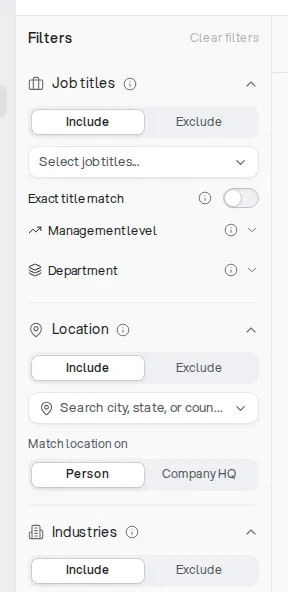
How filters combine
Two rules explain almost every surprise:
- Inside one filter, any match counts. Picking "CEO" and "Founder" in Job titles finds people with either title. Adding more values to one filter makes your list bigger.
- Across filters, every filter must match. Job titles plus Location plus Industries finds people who match all three. Adding another filter makes your list smaller.
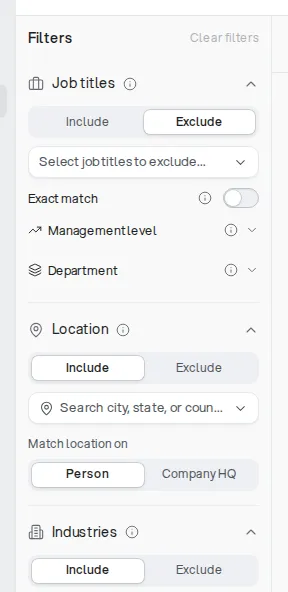
Many filters have an Include and an Exclude tab. Include says who you want. Exclude removes people from what Include found, so a lead that matches both is left out. The number on each tab shows how many values it holds, so you can see at a glance that something is excluded.
The lead count updates as you change filters. Use it as your guide: if a change drops the count far more than you expected, undo it and try a wider value.
Job titles
What it matches: the person's current job title. Off by default, Exact title match finds titles that contain your words, so "CEO" also finds "Founder & CEO". Turn it on to find only titles that are exactly one of yours.
Include vs Exclude: Include the roles you sell to. Exclude roles you never want, such as "Assistant" or "Intern". The Exclude tab has its own Exact match switch: off, it leaves out anyone whose title contains one of your words; on, it leaves out only exact titles.
Inside Job titles there are two more filters:
- Management level filters by seniority, such as Owner, C-Level, VP-Level, Director-Level or Manager-Level.
- Department filters by team: Engineering, Finance & Administration, Human Resources, IT & IS, Marketing, Operations, Sales, Support or Other.
Example: to reach the person who signs off on marketing spend at small firms, include "Owner", "Founder" and "Marketing Director", and exclude "Assistant".
Common mistake: adding a very long list of near-identical titles with Exact title match on. Leave it off and add the core word ("Marketing Director") so variations like "Senior Marketing Director" are found too. A second mistake is setting a title, a management level and a department all at once: each one narrows the list, and together they can leave very few people.
Location
What it matches: a country, state or city. Start typing a place and pick it from the list. By default it matches where the Person is. Switch Match location on to Company HQ to match where the company is based instead.
Include vs Exclude: Include the places you want. Exclude places inside them you don't, such as excluding one state from a whole country.
Example: a US agency that only works with UK firms includes "United Kingdom" and sets Match location on to Company HQ, so it finds UK companies even when a staff member lives elsewhere.
Common mistake: expecting a county to narrow the search. Counties aren't supported and may fall back to the whole state. Add the county's cities one by one instead (see Can I search by city or state?).
Industries
What it matches: the industry a business picked for itself, usually on LinkedIn, such as "Real Estate", "Hospital & Health Care" or "Computer Software". Industries are grouped. Pick a whole group to include every industry in it, or open the group and pick single industries.
Include vs Exclude: Include the industries you sell to. Exclude ones that sit inside a group you picked but don't fit, such as excluding "Staffing and Recruiting" when you picked the whole Business Services group.
Example: a bookkeeping firm that serves builders includes "Construction" and "Architecture & Planning".
Common mistake: relying on an industry alone for a narrow niche. Businesses pick their own industry and many pick a broad one, so a SaaS company may file itself under "Internet" or "Information Technology and Services" rather than "Computer Software". Pair the industry with Company keywords or Business type to find the niche.
Company keywords
What it matches: tags that describe what a company does in more detail than its industry, such as "SaaS", "student housing" or "commercial real estate brokerage".
Include vs Exclude: Include words that describe your ideal customer. Exclude words that describe look-alikes you don't want, such as "agency" when you sell to in-house teams. Off by default, Match all included keywords means any one included keyword is enough. Turn it on to require every keyword on the Include tab.
Example: to find dental practices that offer implants, include "dental" and "implants" with Match all included keywords on.
Common mistake: turning Match all on with many keywords. Each extra keyword must also match, so three or four keywords can shrink a list to almost nothing.
Customer type
What it matches: who a company sells to: Businesses (B2B) or Consumers (B2C).
Include vs Exclude: Include one type to keep only those companies. Exclude a type to drop it.
Example: a payments tool for online shops includes Consumers (B2C), so it finds stores that sell to the public rather than software firms that serve those stores.
Common mistake: picking both types. That matches almost every company, so it adds nothing to your search.
Business type
What it matches: the kind of business a company is: Marketing or creative agency, Software (SaaS), IT services, Consulting, Staffing and recruiting, or Manufacturer.
Include vs Exclude: Include the kind you sell to. Exclude kinds that crowd your list, such as excluding Marketing or creative agency when you want in-house marketing teams.
Example: to reach software founders, include Software (SaaS) with no industry. This finds SaaS companies whatever industry they picked.
Common mistake: adding an industry as well as a business type for the same idea. "Software (SaaS)" plus the "Computer Software" industry leaves out every SaaS company that filed itself under another industry.
Employees
What it matches: company size by headcount. Pick ranges from 1-10 up to 10001+, or type your own range under Your own range (whole numbers from 1 to 1,000,000, smallest first) and choose Add.
Include vs Exclude: there is no Exclude tab. Pick only the sizes you want.
Example: an IT support firm for small offices picks 11-20 and 21-50.
Common mistake: picking a single small range. Headcount data is an estimate, so a business with 9 staff can be listed as 11-20. Pick neighboring ranges to avoid missing good fits.
Technologies
What it matches: companies that use a tool, such as HubSpot or Shopify. Search for the tool by name and pick it from the list.
Include vs Exclude: Include only. Any picked tool is enough.
Example: an agency that migrates stores off WooCommerce picks WooCommerce.
Common mistake: picking a tool almost every company uses, such as Google Analytics. It barely narrows the list. Pick tools your offer works with or replaces.
Hiring for
What it matches: companies with an open job for a role you pick, such as "Sales Development Representative". A company hiring for a role often has budget and a problem you can help with.
Include vs Exclude: Include only.
Example: a recruitment firm picks "Account Executive" to find companies growing their sales team.
Common mistake: pairing Hiring for with Job titles set to the same role. Job titles finds people who already hold the role, not the manager who's hiring. Set Job titles to the person who decides, such as "Head of Sales".
Signals
What it matches: people or companies with a recent event that makes them likelier to reply. Choose Add signal and pick from:
- Job changes: job change, promotion, work anniversary.
- Social activity: posted or commented on LinkedIn, posted on X or YouTube, or the company did.
- Reddit: looking to buy, shared a problem, unhappy with a tool, mentioned a competitor.
- Company news: product launch, pricing change, expansion, executive change, funding, partnership, compliance, a new technology.
- Website traffic and reviews: traffic surge or decline, good or bad staff reviews.
Within sets how recent the signal must be, from the last 7 days to the last 12 months (30 days unless you change it). Mentions is optional: add words the post or news must mention, such as "hiring".
Include vs Exclude: Include only.
Example: a sales coach picks Promotion within the last 30 days with Job titles "Sales Manager", to reach people who just stepped into a new role.
Common mistake: a short window plus Mentions plus several other filters. Signals are rare to begin with, so start with 90 days and no Mentions, then tighten.
Revenue
What it matches: yearly company revenue, in ranges from $0 - 1M up to more than $1B.
Include vs Exclude: Include only.
Example: a finance consultant for mid-size firms picks $10 - 50M and $50 - 100M.
Common mistake: using Revenue for small businesses. Most small companies don't share revenue, so this filter can shrink your list a lot. Use Employees as a rough guide instead.
News
What it matches: companies with a recent news event, such as Launches, Hires, Receives Financing, Opens New Location or Acquires.
Include vs Exclude: Include only.
Example: an office fit-out company picks Expands Offices To and Opens New Location.
Common mistake: using News as the main filter. It only finds companies that have been in the news, which leaves out most small businesses, so add it to a list that's already big enough.
Funding type
What it matches: the kind of investment a company has received, from Angel, Pre-Seed and Seed through Series A to Series J (each with its Pre- stage).
Include vs Exclude: Include only.
Example: a tool for startup finance teams picks Seed and Series A.
Common mistake: using it for companies that never raise money. Most small and family businesses have no funding at all, so this filter leaves most of them out.
Find similar companies
What it matches: companies like one you name. Paste a company's website, such as "nike.com", and the search looks for similar businesses.
Include vs Exclude: one website, no Exclude.
Example: paste your best customer's website to find more companies like them.
Common mistake: pasting a huge, well-known brand. Big brands are similar to other big brands, which may not be who you sell to. Paste a customer that's the size you want.
Domains
What it matches: people at the exact companies you list, by website address, such as "apple.com". Type them in, or use the upload button to import a CSV file of domains.
Include vs Exclude: Include only. To leave a company out, use Company name.
Example: an account-based campaign pastes the 40 target companies from a sales plan.
Common mistake: adding other filters on top. Domains already picks the companies, so an industry or size filter can quietly remove companies on your list. Keep Domains with Job titles and little else.
Company name
What it matches: companies by name. Use it when you know the company but not its website.
Include vs Exclude: the tabs are Is any of and Is not any of. Use Is not any of to keep current customers, partners or competitors out of your list.
Example: add your 10 biggest customers under Is not any of so a new campaign never emails them.
Common mistake: using Is any of when you know the company's website. Different companies can share a name, so Domains is more precise when you have the address.
AI search
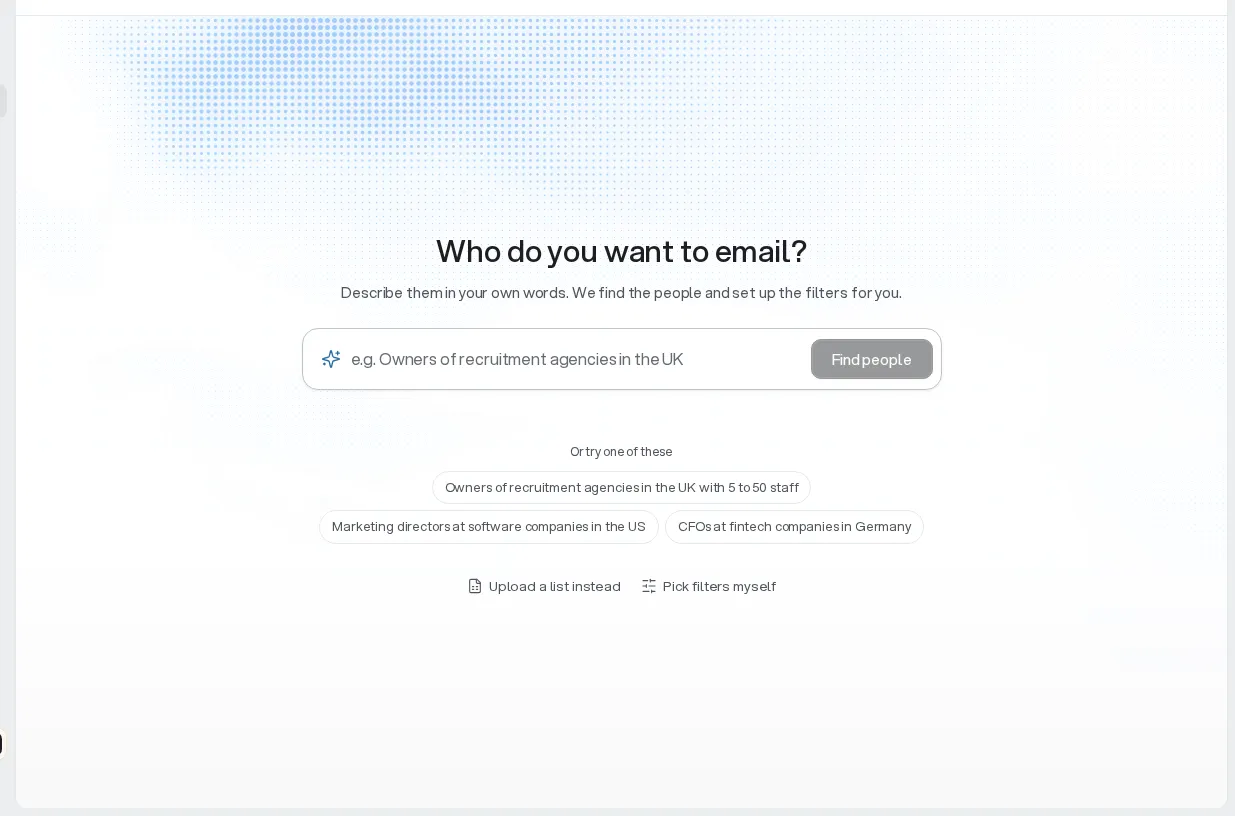
Instead of setting filters by hand, describe who to email in a sentence, such as "owners of small marketing agencies" or "HR managers at software companies in Canada". When you create a campaign, type it in Who do you want to email? and choose Find people, or choose Pick filters myself to skip AI search. When you add leads, type it under Describe who you want to reach and choose Find leads with AI. AI search turns the sentence into filters you can see and change:
- Job titles, Industries and Company keywords.
- Customer type, Business type and Technologies, when your description calls for them.
- Employees: the sizes it suggests. If it suggests none and you haven't picked any, it sets 1-10, 11-20 and 21-50 (1 to 50 staff).
- Location: the places you named. If you named none, it sets the United States, replacing any location already in the panel.
After a search, check Location and Employees first: those are the two it fills in when you didn't say.
When you create a campaign and AI search shows "We couldn't turn that into filters", it couldn't find filters in your description. Try describing the people another way, such as their job and the kind of business they work at, or pick the filters yourself. When you add leads, there is no such message: AI search may fill in only Employees and Location, so check every filter before you continue.
One person per company
The Only one person per company switch (called 1 lead per company when you add leads) keeps only the best match at each company in that search's results, so one search doesn't hand you three people at the same firm. It's off for a new campaign until you turn it on. When you add leads, it starts the way the campaign's last search left it.
Turn it on for most campaigns: several people at one company getting the same email looks like spam and can annoy the buyer. Leave it off when you deliberately want more than one contact per account, such as the owner and the office manager.
The limit applies to each search on its own. A later search, or leads you add another way, can still bring in someone else from a company already in the campaign, because duplicates are checked by email address, not by company.
The lead count shown while you build your search is an estimate taken with the switch as it's currently set, so turning it on can lower the count straight away. See What does "1 lead per company" do?.
Why counts drop
The count you see while building a search is an estimate of matching people. The number that reaches your campaign can be lower because:
- Leads already in your campaigns are left out. Once you import leads, the same search shows fewer available, because they already belong to a campaign. If your workspace sends through its own connected email tool account, duplicates are blocked when leads are uploaded instead. Why did my AI Lead Search show fewer leads after I imported some? explains both cases.
- Leads without a verified email are skipped. Every lead's email is checked before it's added, and leads whose address can't be verified are left out (see I ordered 7000 leads and got 1700, why?).
- Recently contacted leads are left out. Leads someone else on the platform contacted recently are skipped to protect deliverability.
- A filter you added narrowed more than you expected. Revenue, Funding type, Signals and Match all included keywords cut lists the hardest.
Tips by niche
These come from a study of which filters found the best-fitting leads for common short descriptions. AI search already applies them when your description is just the niche, such as "b2b saas" or "ecommerce".
- SaaS: Business type Software (SaaS), with no industry and no keywords. Industries miss SaaS companies that filed themselves elsewhere.
- IT services: Business type IT services, no industry, no keywords.
- Manufacturing: Business type Manufacturer, no industry.
- E-commerce: Technologies for online store tools (such as Shopify, WooCommerce and Klaviyo), Customer type Consumers (B2C) and consumer product industries such as the Retail group, Apparel & Fashion and Cosmetics, with no keywords. Store tools alone also match apps, media and service firms.
- Hospitality: Industries Hospitality, Restaurants and Leisure, Travel & Tourism, plus Customer type Consumers (B2C). Without B2C, suppliers and software firms that serve hotels and restaurants fill the list.
- Edtech: Industries E-Learning and Education Management.
- Medtech: Industry Medical Devices.
- Commercial real estate: Industries Commercial Real Estate and Real Estate.
For other niches, start broad (job title plus one industry or business type plus location), check the sample leads, then add one filter at a time and watch the count.